

MCP servers
Publish an MCP server that calls an API you already control.
An MCP server is a regional URL an agent connects to, with a tool catalog and, when you use the consumer pool, a list of people who may sign in. Before you start, create either a proxy or the three records needed for a direct connection.
| Mode | Connection | Choose it when |
|---|---|---|
| Proxy-backed | One proxy in the same region | The API is already available through a RequestRocket proxy. Policy stays on that proxy. |
| Direct | One inbound credential, target, and target credential in the same region | You want the MCP server to own its policy. |
Do not configure both modes. A direct server cannot use a temporary credential. Its inbound credential must use key, bearer, jwt, basic, idpVerify, or oauth2. An organisation with the MCP user-pool feature can select consumer_pool instead of an inbound credential.
Open the New tab
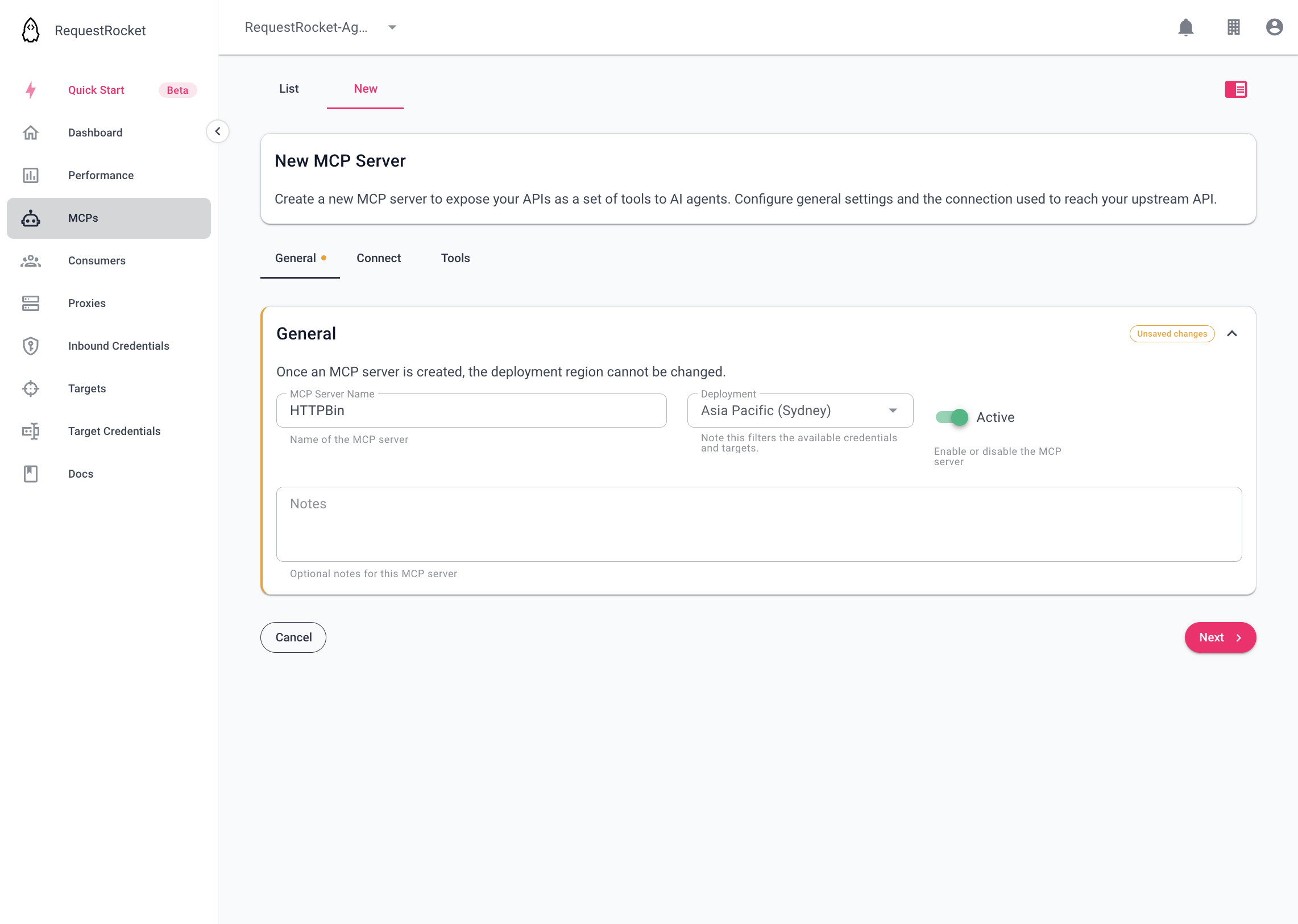
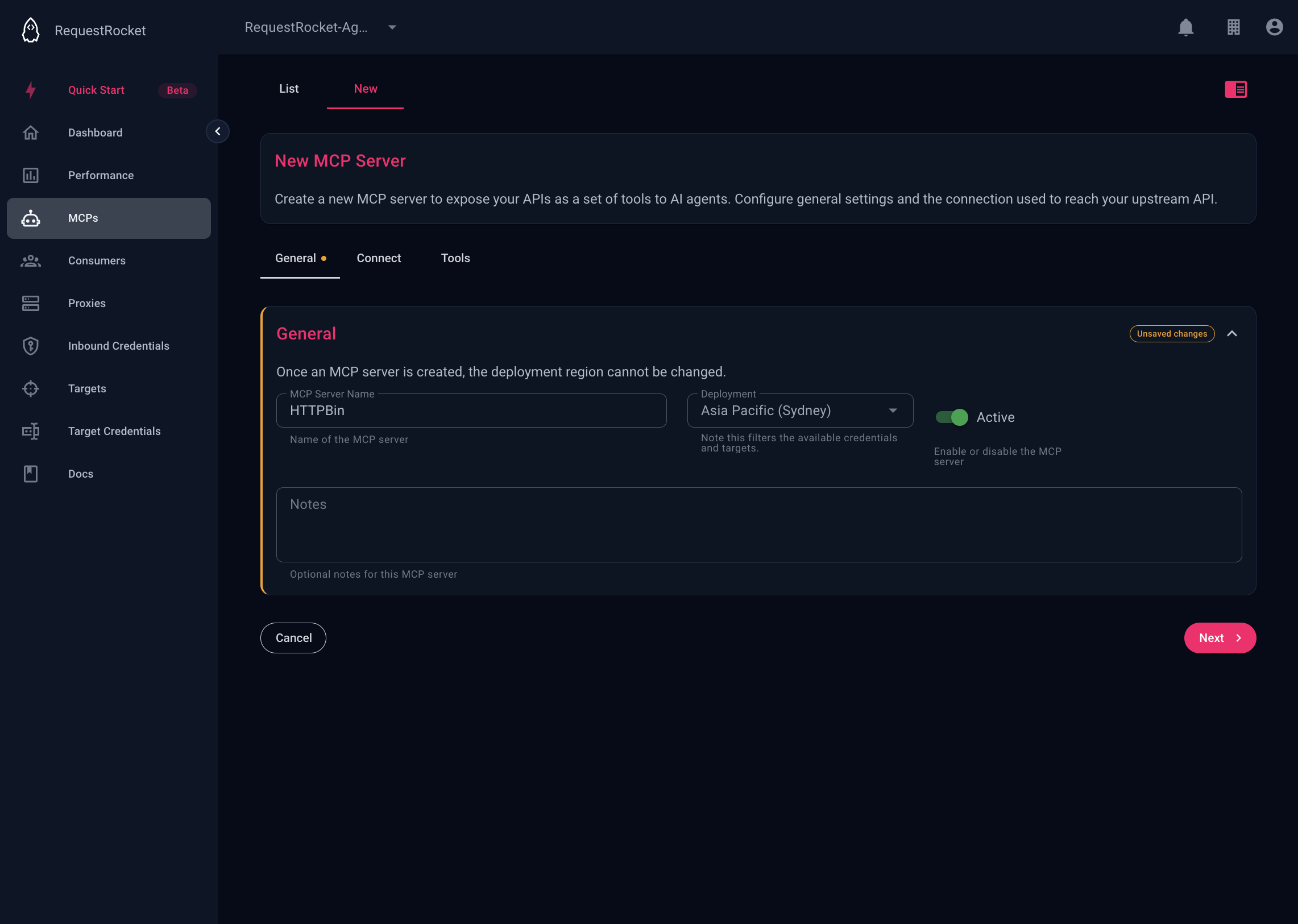
Open MCPs and open the New tab. On General, set the name, the deployment, and Active. The alias can be set after save and accepts only lowercase letters and hyphens.
Choose how the server connects
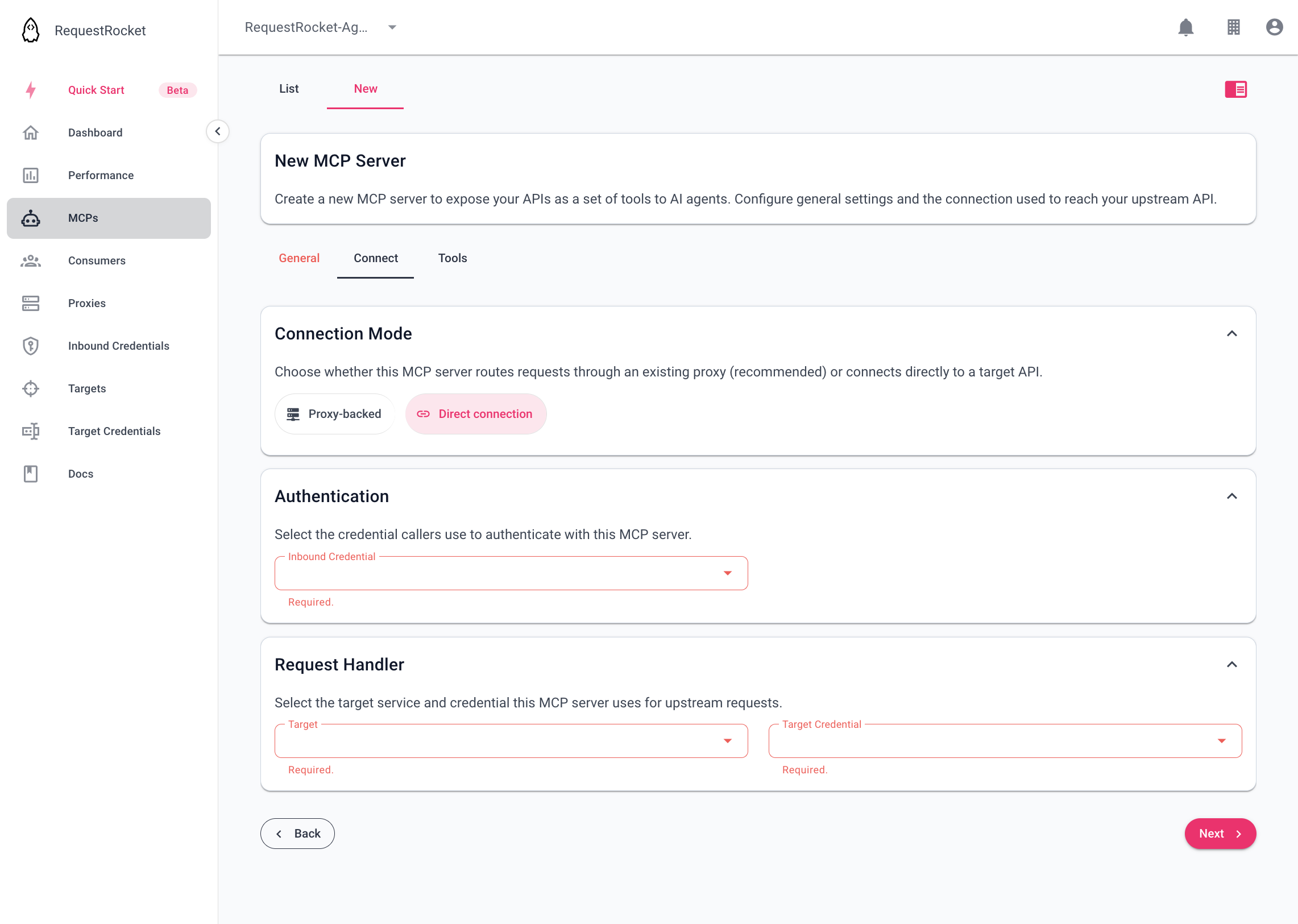
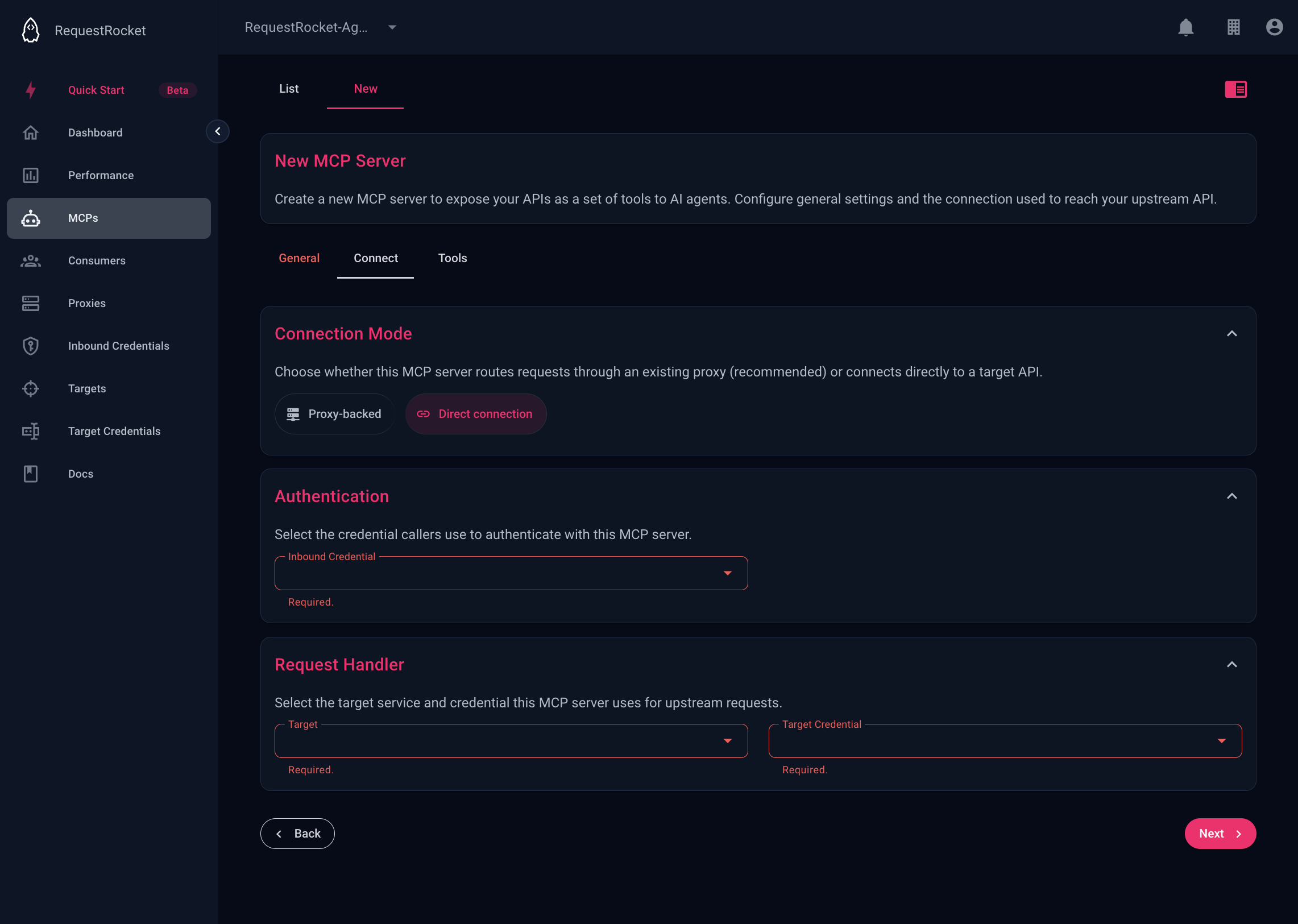
On Connect, choose the proxy-backed or direct mode described above. Every selected record must have the same region as the MCP server.
Add the tools
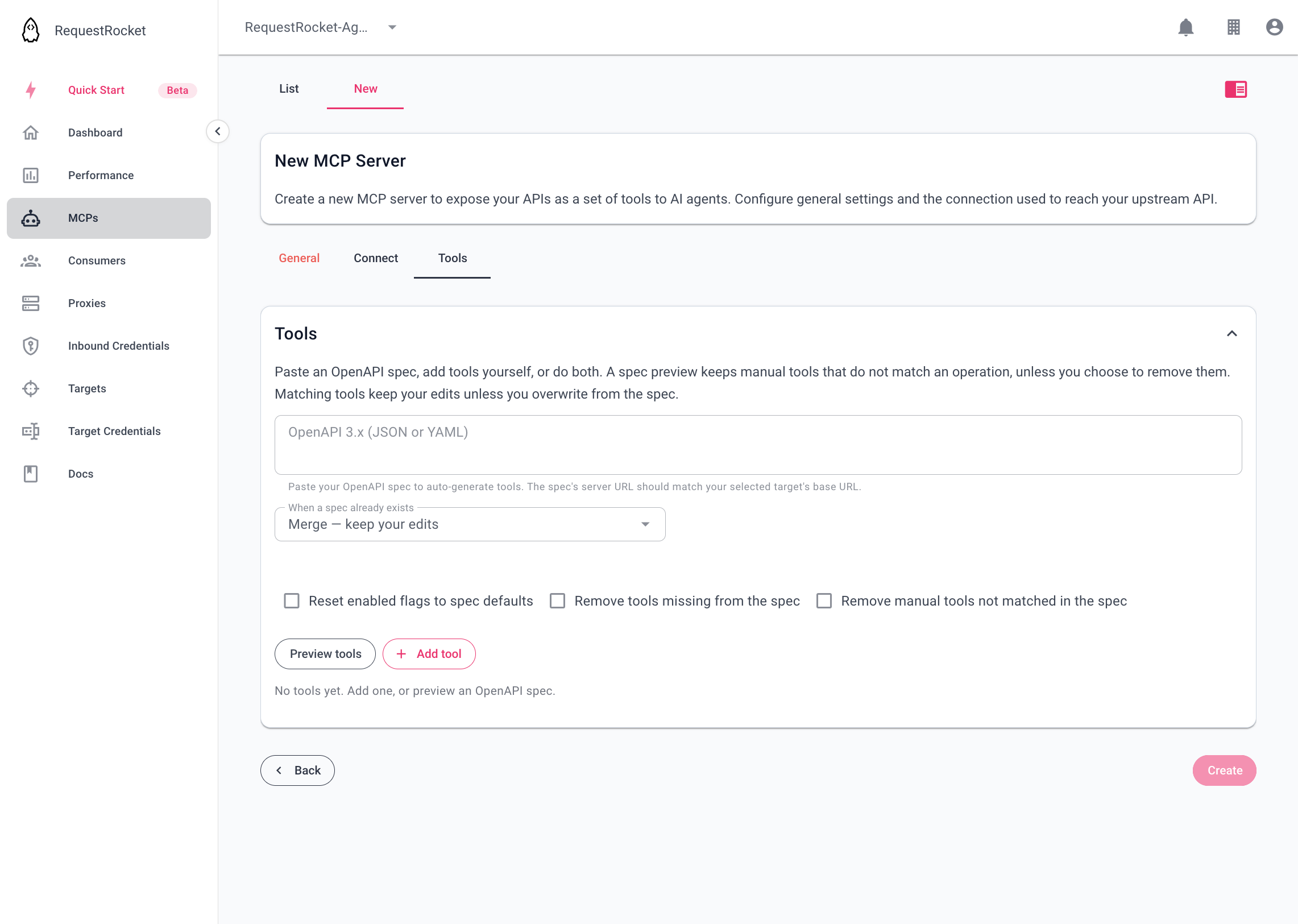
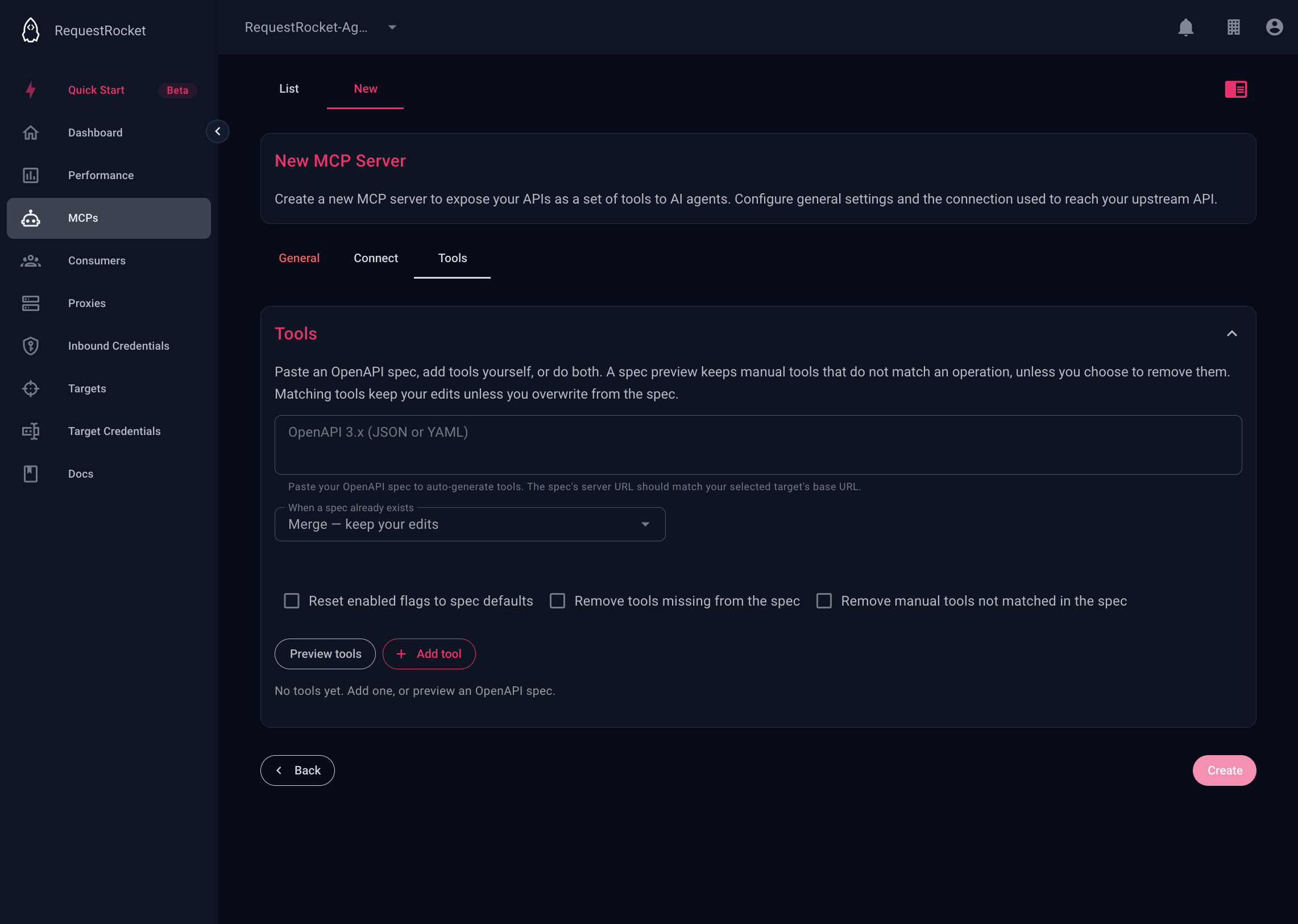
On Tools, paste an OpenAPI 3.x document (JSON or YAML) or add a tool yourself. Choose Preview tools, then leave enabled only the operations an agent should call. A catalog holds at most 200 tools.
The document's server URL should match the target base URL. Merge — keep your edits leaves names, descriptions, and schemas you already changed. Overwrite from spec replaces those edits, and asks you to confirm first. You can also reset enabled flags to the document, drop tools the document no longer contains, or drop manual tools it does not match.
On a new server, the tools are saved when you create it. On a saved server, save the Tools section. Tool changes apply on the next MCP client session.
Save and copy the URL
Create the server. Copy the URL shown after save. It has the form https://{region}.requestrocket.com/mcp/{id-or-alias}.
Connect an MCP client to this URL. The client authenticates with the inbound credential, or through the consumer pool when that is what you selected.
Grant consumers
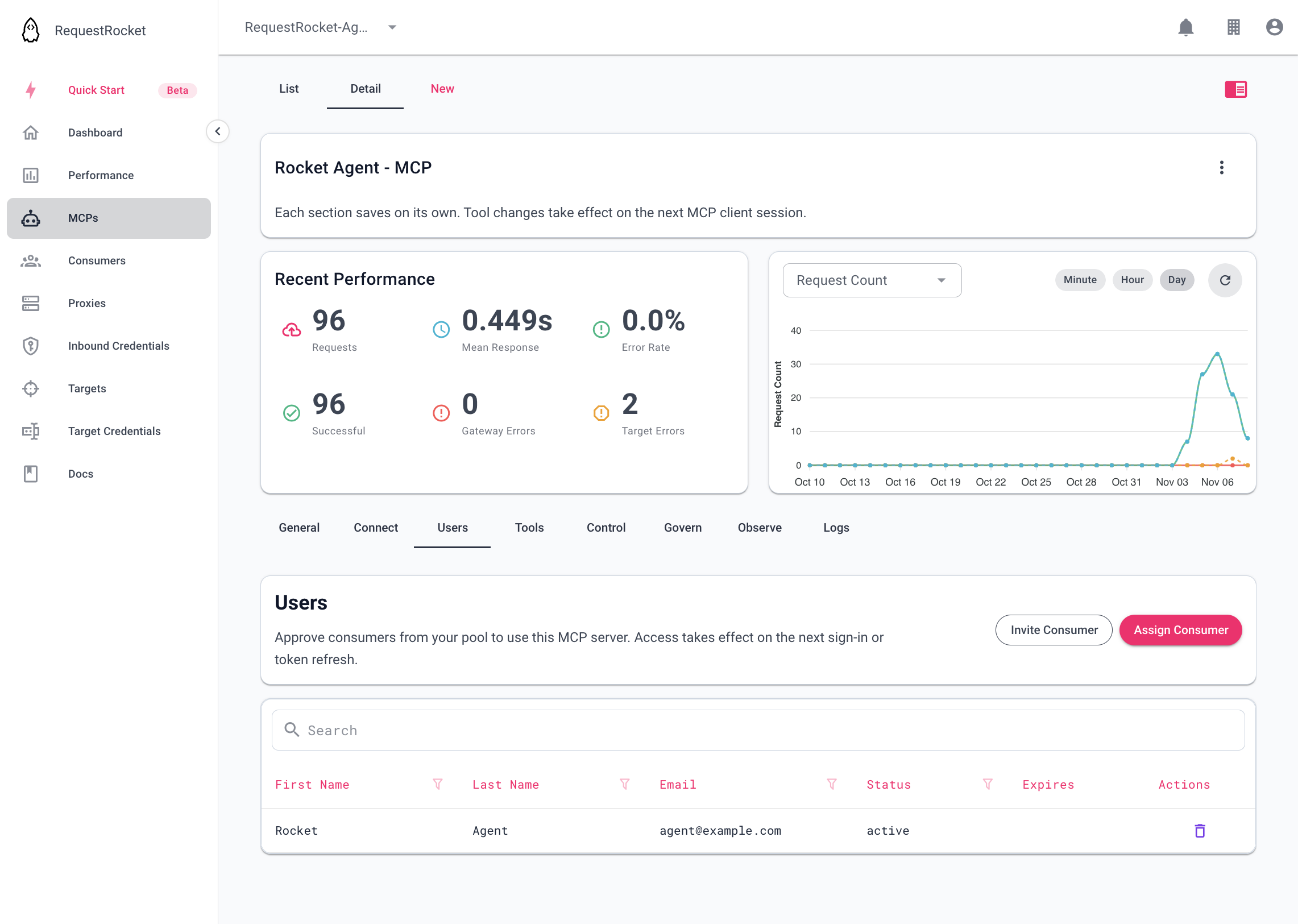
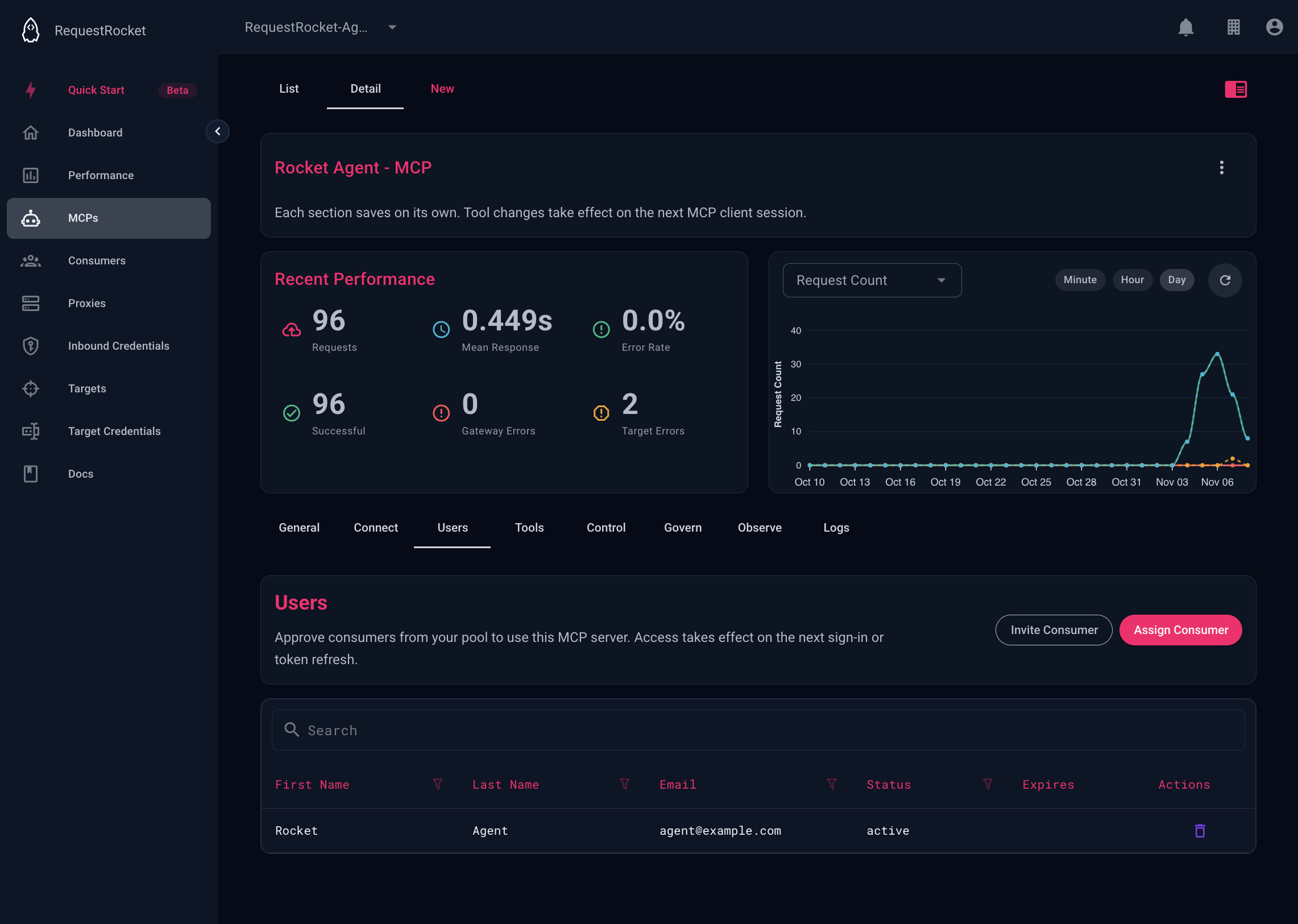
This step applies when the server uses the consumer pool, or when its backing proxy does. After the server is saved, open Users.
Invite a consumer, or assign one who is already in your pool. An assignment can set an expiry. Access applies on the next sign-in or token refresh. A proxy-backed server manages that access on the proxy: the Users tab links there instead of assigning on the MCP server.
Result
An active server accepts MCP client connections at its regional URL. Enabled tools are the operations an agent can call. A consumer-pool server accepts only the consumers assigned on Users, or on the backing proxy. A direct server uses policy configured on the server. A proxy-backed server uses policy configured on its backing proxy.
Troubleshooting
- The connection records are rejected: confirm that all selected records belong to this organisation and share the server region.
- The mode is rejected: provide a proxy, or all three direct records, but not both.
- The server cannot authenticate: replace a temporary or unsupported inbound credential.
- Preview tools warns that the server URL does not match: set the target base URL to the document's server URL, including any path prefix, then preview again.
- Users is not in the tab list: the server is still unsaved, or neither the server nor its backing proxy uses the consumer pool.
- A consumer can sign in but cannot call the server: confirm the assignment targets this server, or its backing proxy, and has not expired. Access applies on the next sign-in or token refresh.